• Video
  • Shop
  • Culture
  • Family
  • Wellness
  • Food
  • Living
  • Style
  • Travel
  • News
  • Book Club
  • Newsletter
  • Privacy Policy
  • Your US State Privacy Rights
  • Children's Online Privacy Policy
  • Interest-Based Ads
  • Terms of Use
  • Do Not Sell My Info
  • Contact Us
  • © 2026 ABC News
  • Living

3 simple steps to set up gaming consoles with parental controls and time limits

3:13
How to set up parental controls on holiday gifts for your kids
STOCK/Getty Images
Becky Worley
ByBecky Worley
December 25, 2019, 9:20 AM

Santa Claus may have brought a gaming console to your kids for Christmas, but creating peace and joy in your house may depend upon parents instituting time limits and age restrictions for the device.

In conjunction with the nonprofit technology safety group Common Sense Media, we created a few tips and device-specific guides for new family gaming consoles.

Related Articles

(MORE: How to use 21 minutes each day to transform your happiness)

1. Set up a login for yourself

Before you fire up the device, create a login for yourself through the console company’s website or phone app (Sony, Microsoft or Nintendo). Inputting your data is so much easier this way and some parental controls are only available through the site or app.

Editor’s Picks

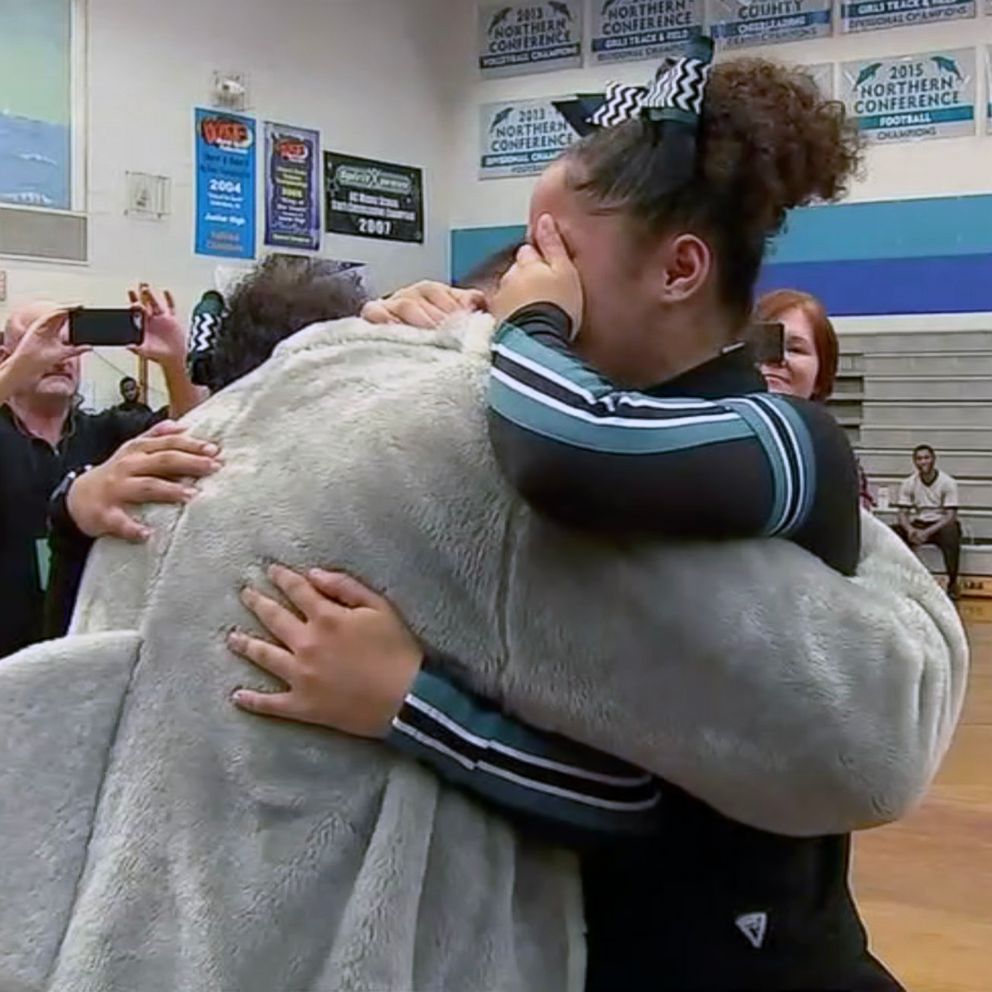
Sisters burst into tears as school mascot is revealed to be military dad

  • Dec 25, 2018

Unwind for the holidays with these DIY all-natural skin care products

  • Dec 25, 2018

Common Sense has specific instructions for each platform here: X-Box, PlayStation and Nintendo Switch.

This stock photo depicts a mom with her children on Christmas morning.
STOCK/Getty Images

Related Articles

(MORE: Daughter signs lyrics to deaf dad at Three Days Grace concert)

2. Create separate logins for each member of the family

Create separate identities within your login for each individual in your family. If you don’t do this from the beginning and you try to create new logins later, your kids will lose all their game progress (leveling up and accumulated achievements).

3. Create a Media Use contract

Go to Common Sense Media and download a Media Use contract.

Go over it with your child to determine when, where and how much screen time you all agree on.

Editor’s Picks

Sisters burst into tears as school mascot is revealed to be military dad

  • Dec 25, 2018

Unwind for the holidays with these DIY all-natural skin care products

  • Dec 25, 2018

Up Next in Living—

Christina Koch reunites with dog after historic Artemis II mission

April 13, 2026

Meet the 'sewer singer' going viral on TikTok with nearly 500K likes

April 13, 2026

Home Depot's Skelly returns with upgrades in 'Halfway to Halloween' collection

April 9, 2026

What to know about Artemis II astronaut Reid Wiseman's late wife

April 7, 2026

Shop GMA Favorites

ABC will receive a commission for purchases made through these links.

Sponsored Content by Taboola

The latest lifestyle and entertainment news and inspiration for how to live your best life - all from Good Morning America.
  • Contests
  • Terms of Use
  • Privacy Policy
  • Do Not Sell My Info
  • Children’s Online Privacy Policy
  • Advertise with us
  • Your US State Privacy Rights
  • Interest-Based Ads
  • About Nielsen Measurement
  • Press
  • Feedback
  • Shop FAQs
  • ABC News
  • ABC
  • All Videos
  • All Topics
  • Sitemap

© 2026 ABC News
  • Privacy Policy— 
  • Your US State Privacy Rights— 
  • Children's Online Privacy Policy— 
  • Interest-Based Ads— 
  • Terms of Use— 
  • Do Not Sell My Info— 
  • Contact Us— 

© 2026 ABC News