The do's and don'ts of video conferencing etiquette
This is a Digital Trends story.
Whether you’re a veteran remote worker or you’ve recently found yourself having to work from home, at some point you’ll probably have to conduct a meeting with your co-workers via a video conference call. And while you might know how to set up video calling for a meeting, it’s also important to be aware of how to practice proper video conferencing etiquette.
That said, we’ve come up with a quick guide to the do’s and don’ts of video conferencing etiquette, to help you attend or conduct your meetings as smoothly as possible.story.
The Dos
Test your hardware and internet connection beforehand
Nothing causes a video conference call to come to a screeching, awkward halt quite like slow internet speeds, connectivity issues, or malfunctioning hardware. One of the most important things to do before joining a call or hosting one is making sure that your hardware works (microphone, speakers, headphones) and that your internet speeds are fast enough to support a decent level of quality for a video call. Fortunately, there are a number of quick online internet speed tests you can use to check your internet connection.
For video calling apps like Skype, the required speeds for video calls depends on the complexity of the video call itself. For example, according to Skype: the minimum required download/upload speed for a video call involving seven or more people would be 4Mbps/128kbps. The recommended speed for a call that large would be 8Mbps/512kbps.
When it comes to testing your hardware, most video conferencing apps will help you test your microphone, webcam, and speakers to confirm that they’ll work during the meeting. Check their settings menu if you can’t spot the test(s) straight away.
Even if you do run into issues, it’s best to know if your setup has a problem beforehand so that you can troubleshoot it before your meeting starts.
Blur or change your background
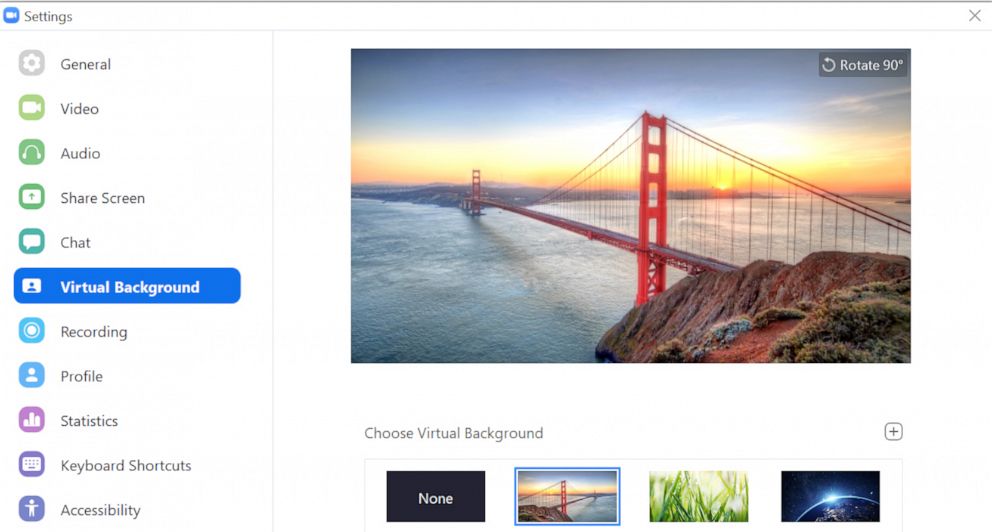
Maybe you don’t have an office at home. Or maybe you found a quiet place in which you could attend your meeting but the room itself might be distractingly messy or have walls with not-so-bland decor. If you don’t have the time (or the inclination) to alter the room itself, you can still hide the appearance of your chosen space via background features offered in some video conferencing clients. For example, Zoom allows its users to add a fun virtual background to their video instead of just showing the contents of their messy rooms. Both Skype and Microsoft Teams offer a “background blur” feature that allows you to blur your actual background and places the focus of your video on you.
Know when to video conference and when to Slack
Not every work issue needs to be hashed out via video calls. Make sure that the topic of discussion is appropriate for a video conference. If it can be handled via Slack or an email, then use those methods. Generally speaking, longer conversations and remote training sessions are the best uses for video calls.



Video conference calls can be difficult to coordinate (especially as the number of participants increases) and time-consuming. Not everyone can just hop on a call, so be mindful of that while deciding whether or not to have a video conference meeting.
Find a quiet, private space or use a white noise machine
It’s important to find a quiet space for your video calls so that you can hear your meeting and so that you’re not being disruptive to others while your mic has to be on. But if you work from home and have kids or pets it can be hard to find a quiet room to attend your video conference call meeting. When background noise is unavoidable, or if your work requires privacy, it may be worth it to use a white noise machine to help drown out excess background noises and muffle your own private conversations.
The Don’ts
Don’t talk over each other. Use the chat function to ask questions
Chances are you’ll have questions about the content presented or discussed during your meeting. But it can be hard to get everyone’s attention during the meeting to ask your question. You could try interrupting or talking over someone so you can ask your question. But that’s rude. Plus, it can be disruptive to constantly have to stop the flow of the meeting to answer questions as they come up.
So what should you do? The best, least intrusive method is to use your video conferencing app’s chat function, if it has one. This way, you and your colleagues can submit all the questions you want during the meeting without audibly interrupting anyone who is speaking. And then, during a natural lull in the meeting, the presenter or meeting host can answer those questions at their convenience because the questions will be viewable by everyone in the chat message sidebar.
Don’t keep your mic on if you’re not speaking
If it’s not your turn to speak during the meeting, keep your microphone muted. Otherwise, your video conference call will stream the sounds of your movements. This is especially important if you plan to eat during the meeting, tend to fidget loudly, or if you happen to be in a place that isn’t very quiet like a coffee shop or maybe your home. These background noises can be very distracting and interrupt your co-workers when it’s their turn to speak. Video calling clients like Zoom will often have a microphone icon you can tap on to mute or unmute your microphone during the meeting.
Don’t let yourself get distracted during the meeting
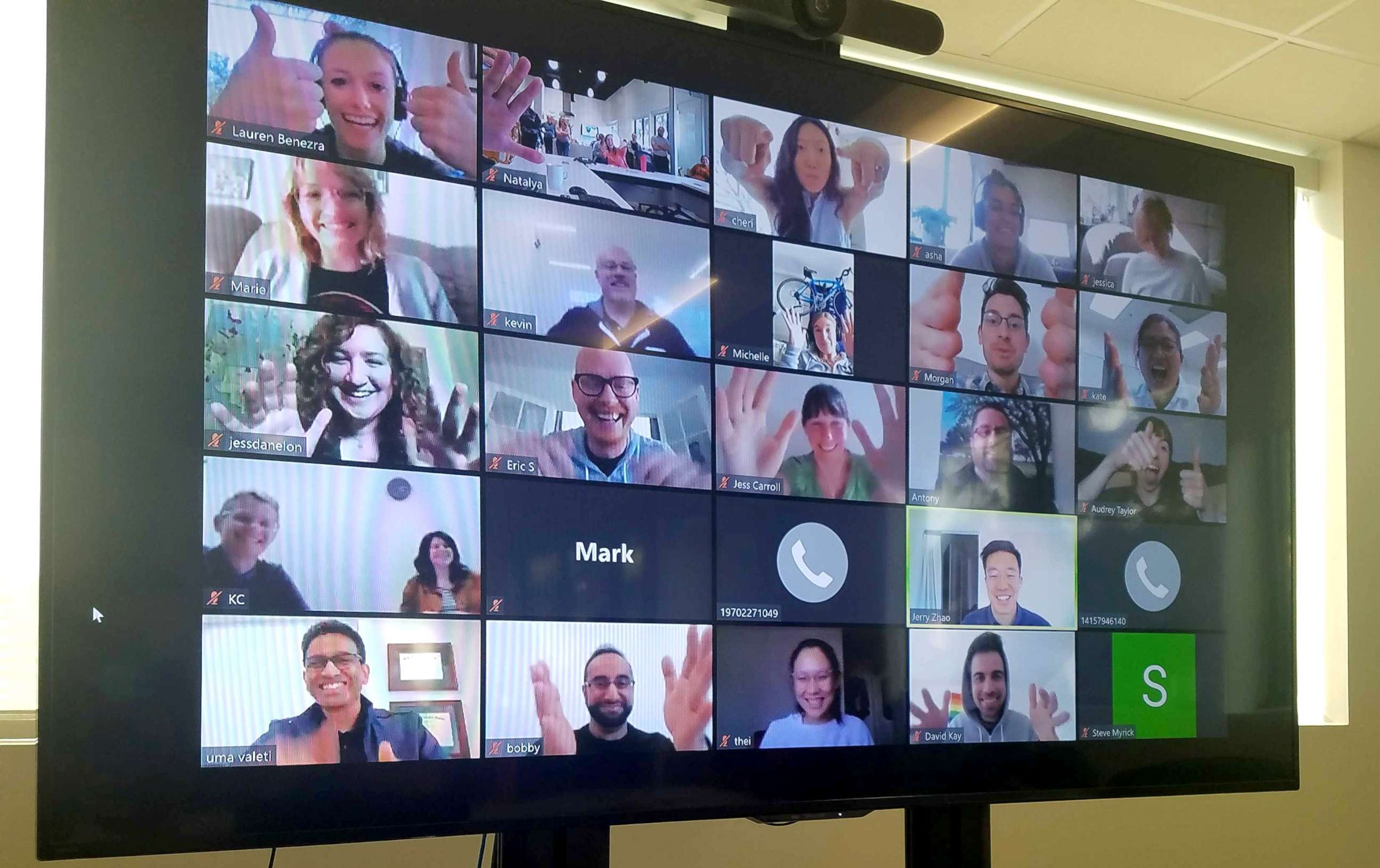
You might be tempted to work on other tasks during the video meeting. If possible, try not to do that and just focus on the meeting at hand and being present with your co-workers. The thing about video conferencing is that your video presence tends to be magnified and it will be more obvious to your co-workers that you aren’t paying attention if you constantly appear to be fidgeting, moving around, or gazing elsewhere while someone else is talking. Taking notes on the content discussed during the meeting is fine, but other activities should be kept to a minimum or avoided.
What to know about Coronavirus:
- How it started and how to protect yourself: Coronavirus explained
- What to do if you have symptoms: Coronavirus symptoms
- Tracking the spread in the US and Worldwide: Coronavirus map
Don’t look sloppy: Dress for your audience
Not all video conference calls are created equal and your outfits should match the expectations of your audiences. So, if it’s just your family and friends, you could probably get away with your comfiest sweatpants/t-shirt combo. But with your co-workers, it’s probably best to adhere to your company’s dress code, at least from the waist up — though that only works if you know you won’t be getting up to move around during the meeting.
Overall, it’s best to match your video call look to how you’d normally look in the office.
Digital Trends is a technology news website that publishes reviews and guides about technology and consumer electronics.